

Link an artifact to a collection
Choose a workflow based on whether you want to create the artifact during a run, create it without a run, or link an existing artifact version.Before you start, check the following:
- The types of artifacts that collection permits. For more information about collection types, see “Collection types” within Create a collection.
- The registry that the collection belongs to already exists. To check that the registry exists, navigate to the Registry App and search for the name of the registry.
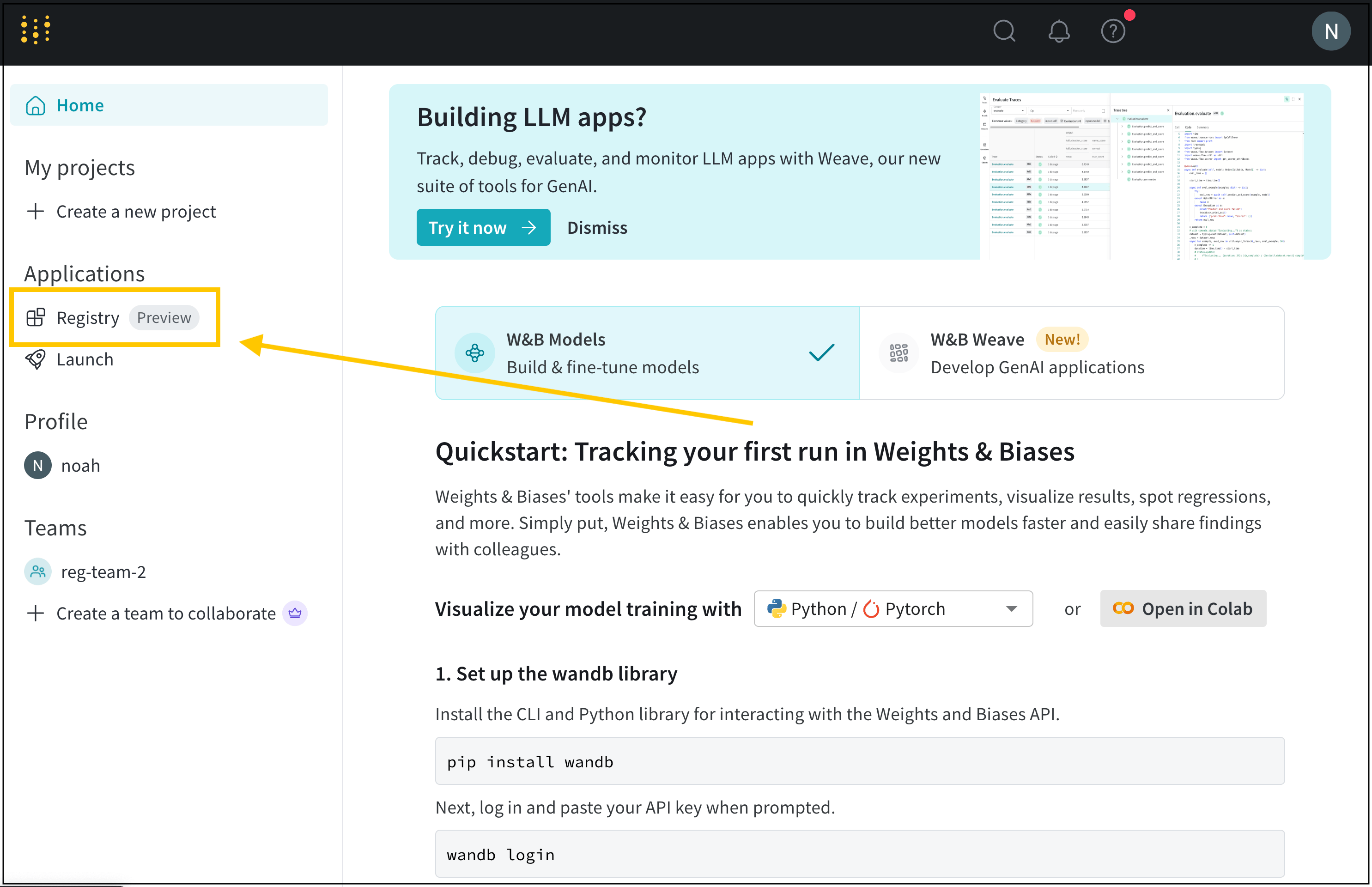
- Python SDK
- W&B Registry
- Artifact browser
Programmatically link an artifact version to a collection with
wandb.Run.link_artifact() or
wandb.Artifact.link()The following table summarizes the methods you can use to link an artifact version to a collection and what W&B records when you use each method.Pass the destination collection path to the
target_path parameter. The path consists of the wandb-registry- prefix, the registry name, and the collection name:Link an artifact from a run
Usewandb.Run.link_artifact() to create and link an artifact version during an active run. W&B logs draft artifacts as outputs of the run before linking them.To create and link an artifact version:- Initialize a run with
wandb.init(). - Create an
Artifactobject and add one or more files. - Call
wandb.Run.link_artifact()and specify the destination collection.
<>) with your own values:Create and link an artifact
Usewandb.Artifact.link() to create and link a draft artifact without explicitly initializing a run. W&B creates an automatic run if needed to save the artifact before linking it.To create and link an artifact version:- Create an
Artifactobject and add one or more files. - Call
wandb.Artifact.link()and specify the destination collection.
<>) with your own:Link an existing artifact
Usewandb.Artifact.link() on an artifact fetched with wandb.Api().artifact() to link an existing committed artifact version without creating a new run.- Create a Public API client with
wandb.Api(). - Retrieve the artifact version with
wandb.Api.artifact(). - Call
wandb.Artifact.link()and specify the destination collection.
View linked artifacts in a registry
View information about linked artifacts such as metadata, lineage, and usage information in the W&B Registry.- Navigate to the W&B Registry.
- Select the name of the registry that you linked the artifact to.
- Select the name of the collection.
- If the collection’s artifacts log metrics, compare metrics across versions by clicking Show metrics.
- From the list of artifact versions, select the version you want to access. Version numbers are incrementally assigned to each linked artifact version starting with
v0. - To view details about an artifact version, click the version. From the tabs in this page, you can view that version’s metadata (including logged metrics), lineage, and usage information.
Full name of a linked artifact
Troubleshooting
Below are some common things to double check if you are not able to link an artifact.Logging artifacts from a personal account
Artifacts logged to W&B with a personal entity can not be linked to the registry. Make sure that you log artifacts using a team entity within your organization. Only artifacts logged within an organization’s team can be linked to the organization’s registry.Ensure that you log an artifact with a team entity if you want to link that artifact to a registry.
Find your team entity
W&B uses the name of your team as the team’s entity. For example, if your team is called team-awesome, your team entity isteam-awesome.
You can confirm the name of your team by:
- Navigate to your team’s W&B profile page.
- Copy the site’s URL. It has the form of
https://wandb.ai/<team>. Where<team>is the both the name of your team and the team’s entity.
Log from a team entity
-
Specify the team as the entity when you initialize a run with
wandb.init(). If you do not specify theentitywhen you initialize a run, the run uses your default entity which may or may not be your team entity. -
Log the artifact to the run either with
wandb.Run.log_artifact()or by creating an Artifact object and then adding files to it with:To log artifacts, see Construct artifacts. - If an artifact is logged to your personal entity, you will need to re-log it to an entity within your organization.
Confirm the path of a registry in the W&B App UI
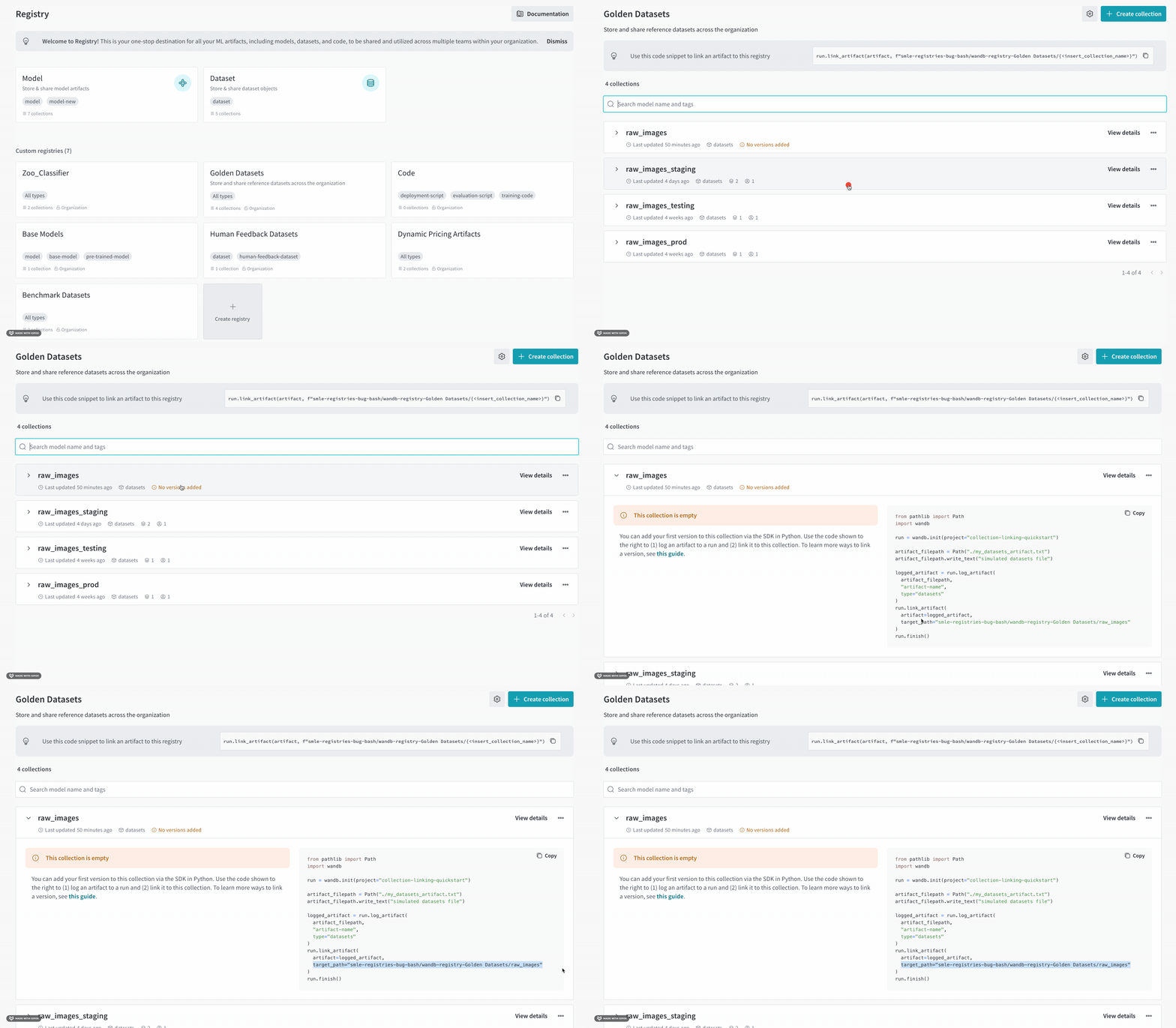
Create an empty collection to confirm the path of the registry in the W&B App UI. To do so, follow the steps below:- Navigate to the W&B Registry at https://wandb.ai/registry/.
- Click the registry you want to link an artifact to.
- Click on the empty collection. If an empty collection does not exist, create a new collection.
- Within the code snippet that appears, identify the
target_pathfield within.link_artifact(). - (Optional) Delete the collection.
target_path parameter:
Ensure that you replace the name of the collection from the temporary collection with the name of the collection that you want to link your artifact to.