> ## Documentation Index
> Fetch the complete documentation index at: https://wb-21fd5541-docs-2751.mintlify.site/llms.txt
> Use this file to discover all available pages before exploring further.
> Tutorial on how to create sweep jobs from a pre-existing W&B project.
# Tutorial: Create sweep job from project
This tutorial explains how to create sweep jobs from a pre-existing W\&B project. It guides you to create a baseline project, configure a hyperparameter sweep, and launch agents that run training jobs in parallel.
You use the [Fashion MNIST dataset](https://github.com/zalandoresearch/fashion-mnist) to train a PyTorch convolutional neural network to classify images. The [W\&B examples repository (PyTorch CNN Fashion)](https://github.com/wandb/examples/tree/master/examples/pytorch/pytorch-cnn-fashion) provides the required code and dataset.
Explore the results in this [W\&B Dashboard](https://app.wandb.ai/carey/pytorch-cnn-fashion).
## Create a project
First, create a baseline project by training the example model at least once. This baseline gives the sweep something to configure against in later steps. Download the PyTorch MNIST dataset example model from the W\&B examples GitHub repository. Next, train the model. The training script is within the `examples/pytorch/pytorch-cnn-fashion` directory.
To download and train the example model:
1. Clone the repository:
```bash theme={null}
git clone https://github.com/wandb/examples.git
```
2. Open the example directory:
```bash theme={null}
cd examples/pytorch/pytorch-cnn-fashion
```
3. Run the training script manually:
```bash theme={null}
python train.py
```
4. Optional: Explore the example in the W\&B App dashboard. [View an example project page](https://app.wandb.ai/carey/pytorch-cnn-fashion).
After this initial run completes, you have a baseline project in W\&B that the sweep can build on.
## Create a sweep
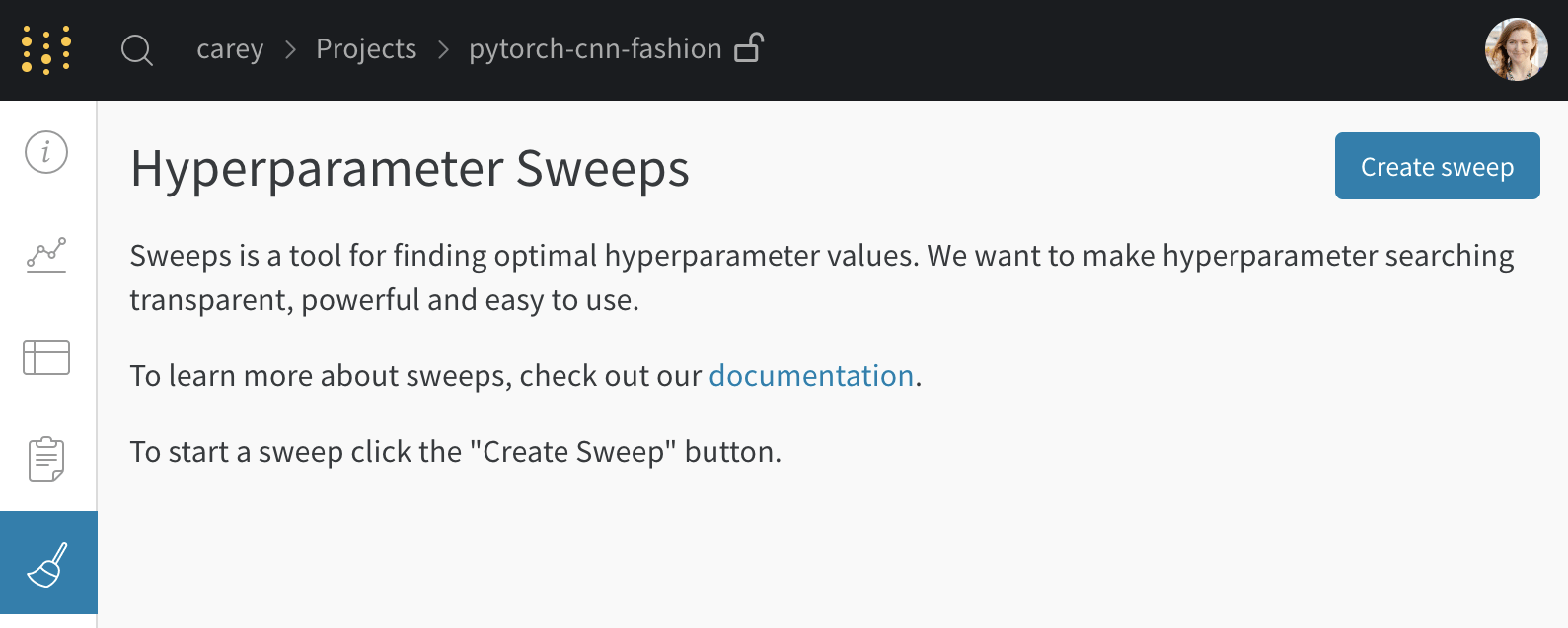
With a baseline project in place, you can configure a sweep over its runs. From your project page, open the [**Sweep** tab](/models/sweeps/visualize-sweep-results) in the project sidebar and select **Create Sweep**.
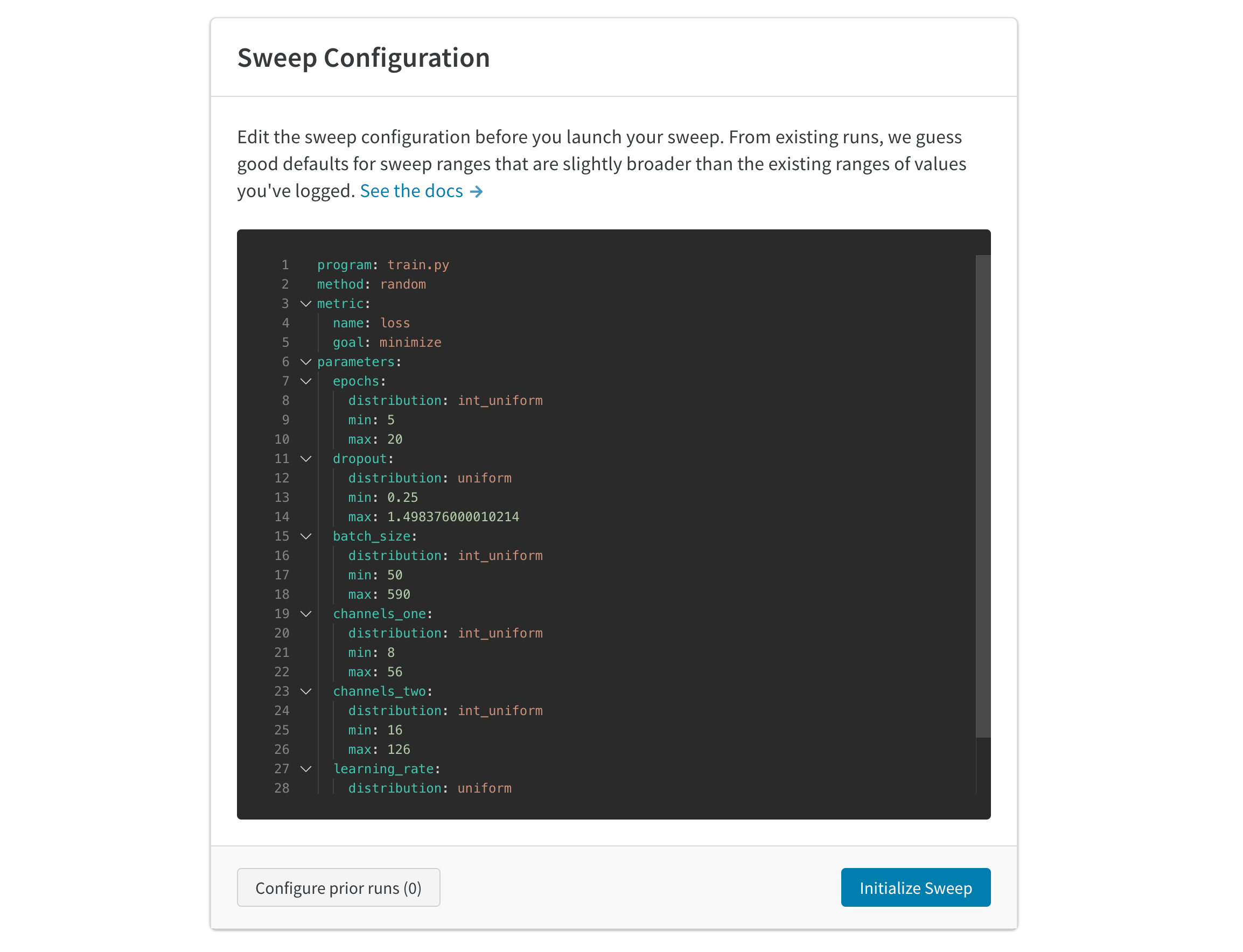
 The auto-generated configuration suggests values to sweep over based on the runs you've completed. Edit the configuration to specify what ranges of hyperparameters you want to try. When you launch the sweep, it starts a new process on W\&B's hosted sweep server. This centralized service coordinates the agents (the machines that run the training jobs).
 ## Launch agents
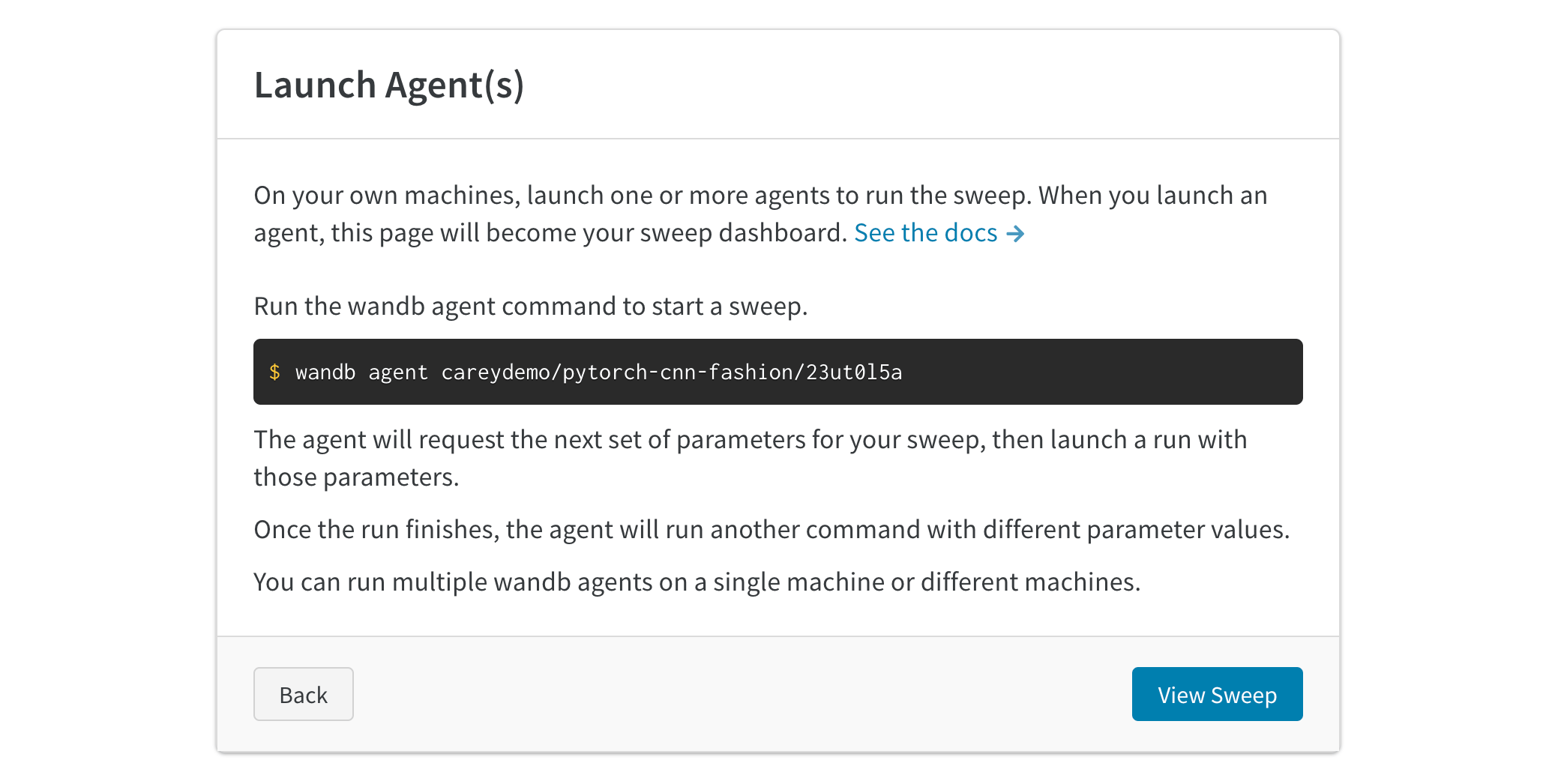
After you configure the sweep, launch one or more agents to execute the runs. Launch up to 20 agents in parallel across different machines to finish the sweep job more quickly. Each agent prints the next set of parameters to use.
## Launch agents
After you configure the sweep, launch one or more agents to execute the runs. Launch up to 20 agents in parallel across different machines to finish the sweep job more quickly. Each agent prints the next set of parameters to use.
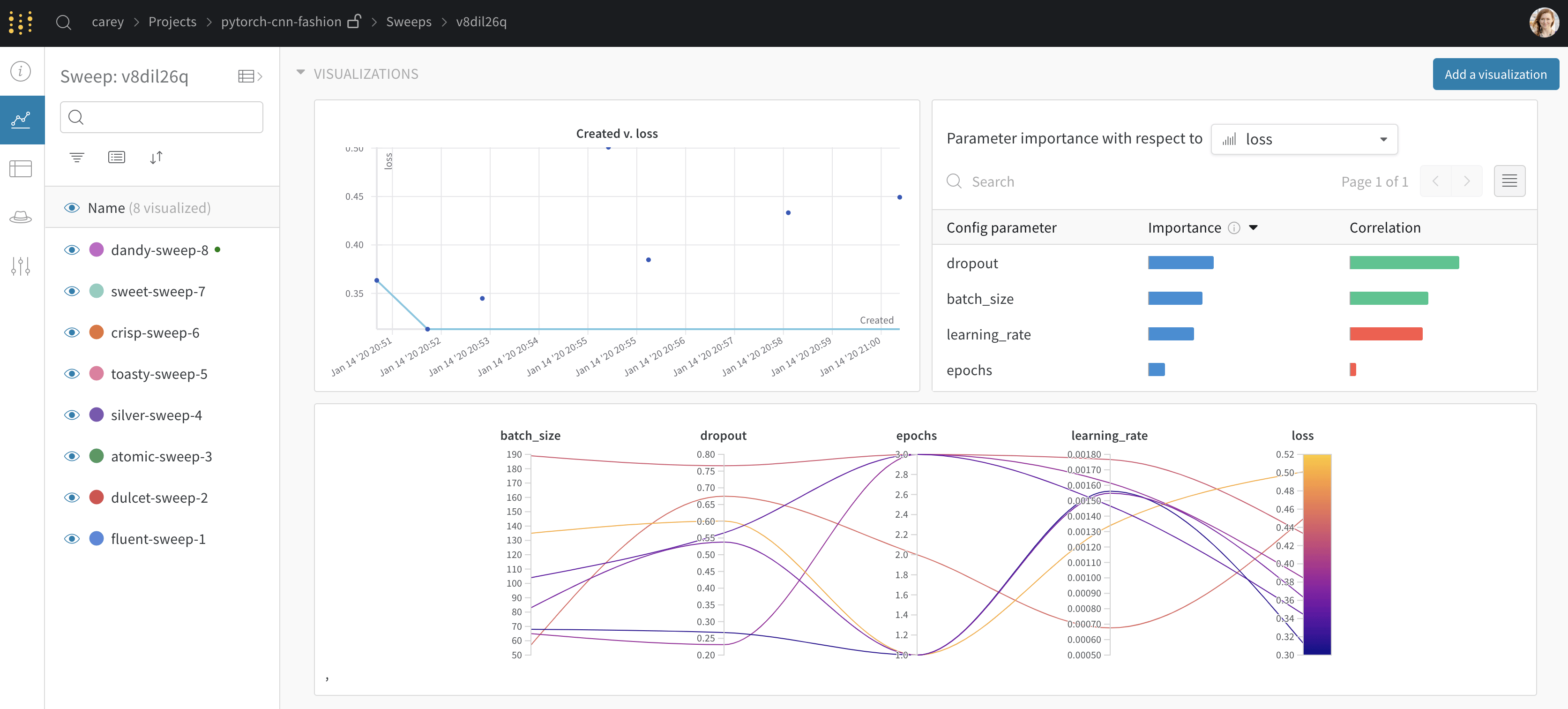
 You now have a running sweep that coordinates training jobs across your agents and reports results back to W\&B. The following image shows the dashboard with the example sweep job running.
 ## Seed a new sweep with existing runs
To reuse earlier results as a starting point, launch a new sweep using existing runs that you've previously logged:
1. Open your project table.
2. Click a run row's checkbox to select the run.
3. Select the dropdown to create a new sweep.
Your sweep is now set up on the server. Launch one or more agents to start the runs.
## Seed a new sweep with existing runs
To reuse earlier results as a starting point, launch a new sweep using existing runs that you've previously logged:
1. Open your project table.
2. Click a run row's checkbox to select the run.
3. Select the dropdown to create a new sweep.
Your sweep is now set up on the server. Launch one or more agents to start the runs.
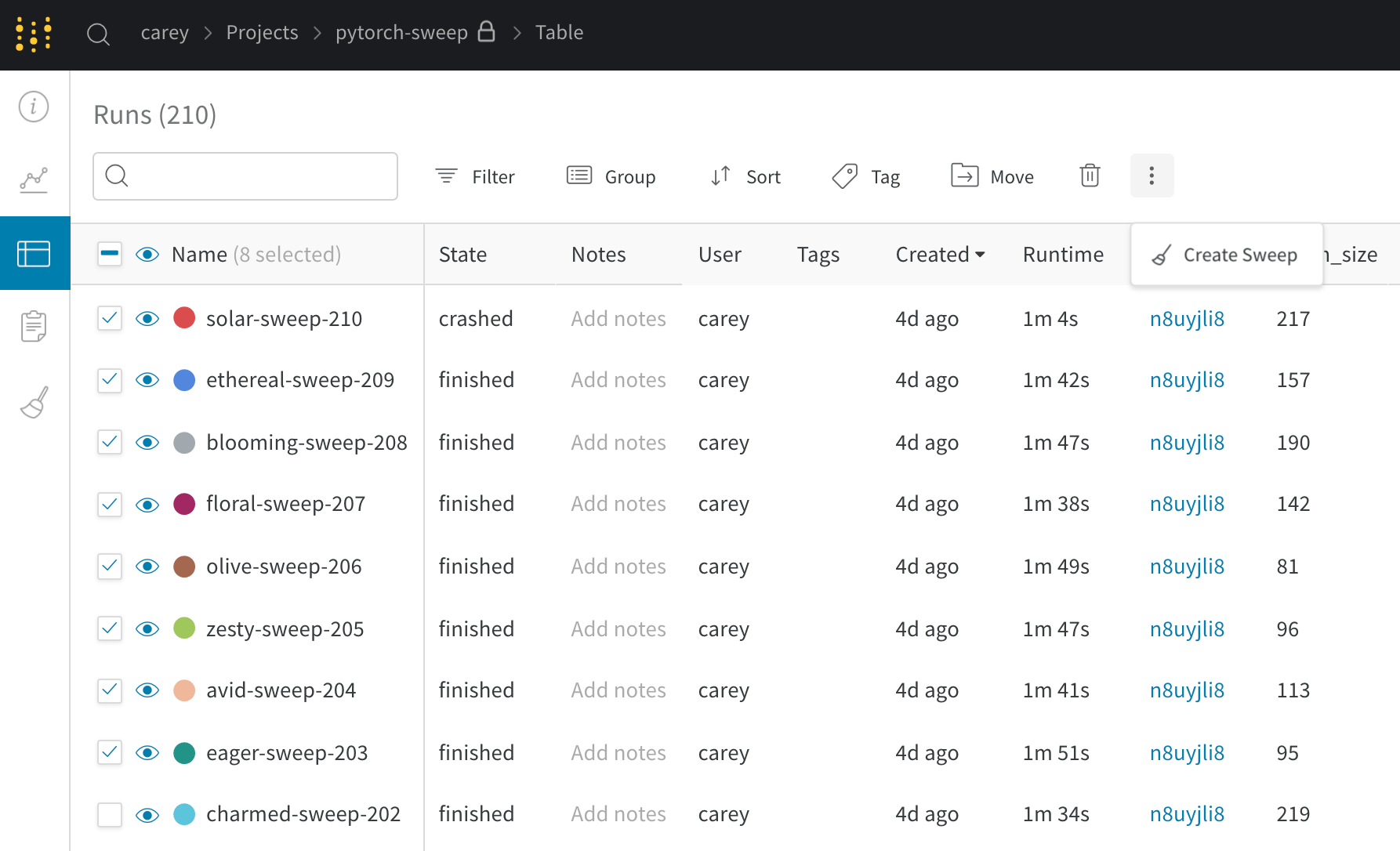 If you start the new sweep as a Bayesian sweep, the selected runs also seed the Gaussian process.